> ## Documentation Index
> Fetch the complete documentation index at: https://docs.herondata.io/llms.txt
> Use this file to discover all available pages before exploring further.
# Plaid Integration
To integrate with Heron Data using Plaid, you’ll need to configure an integration in the Heron and Plaid Dashboards.
## Prerequisites
Before following this guide, you will need:
* Access to [dashboard.herondata.io](http://dashboard.herondata.io) and via your `username` and `password`, and also an `api_key` to call our API.
* A working [Plaid Link](https://plaid.com/docs/link/) implementation including storing `item_id`s and `access_token`s in your system.
* A unique identifier for each of your customers (which can have many Plaid connections) that you can send to us. We call this the `end_user_id`.
## Integration steps
1. Log in to [dashboard.herondata.io](http://dashboard.herondata.io)
2. Go to **Settings** on the sidebar menu then scroll to the **Integrations** section.
3. Select “Plaid” as an integration type and give your integration a meaningful name.
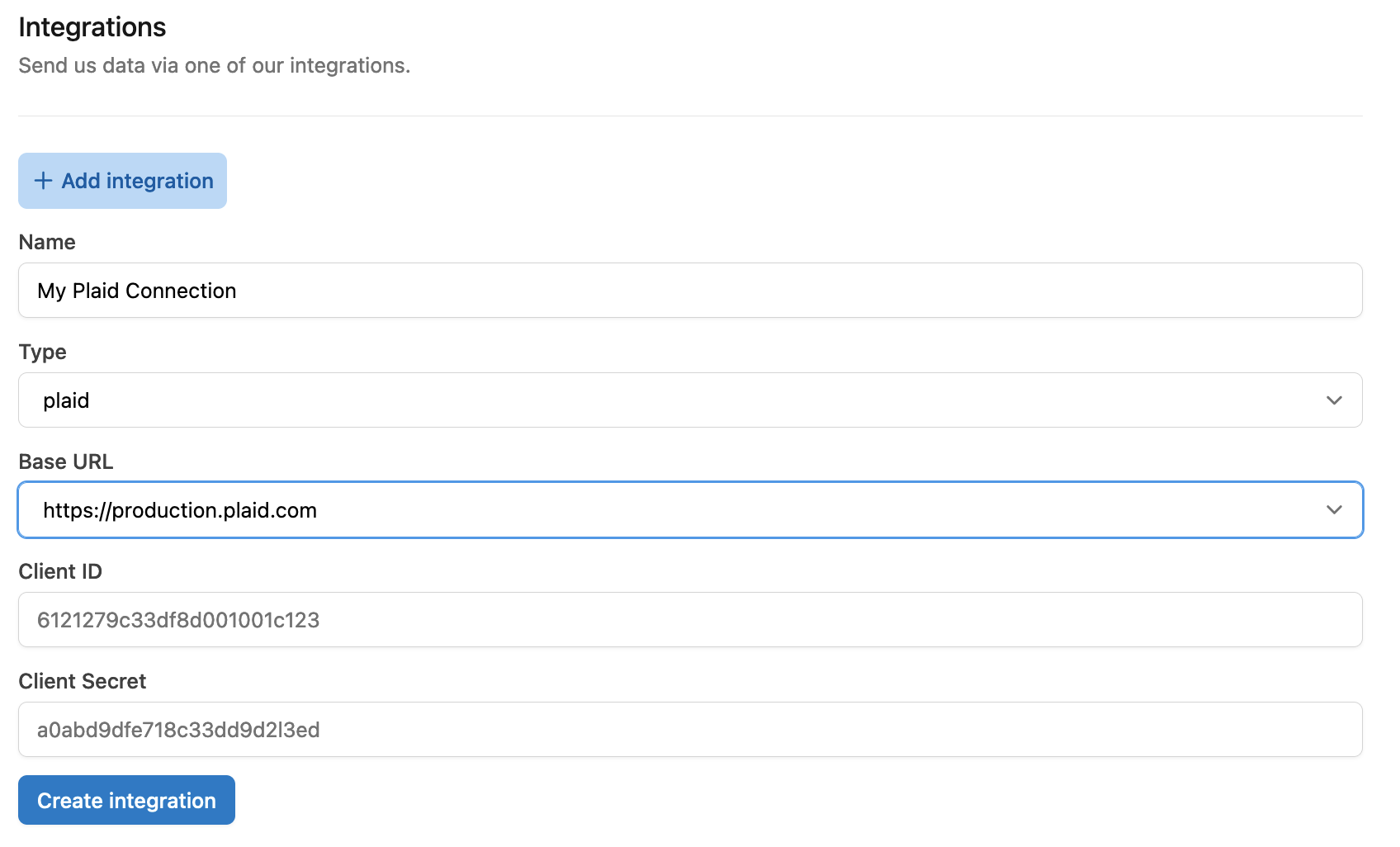 4. Go to your Plaid dashboard ([https://dashboard.plaid.com/team/keys](https://dashboard.plaid.com/team/keys)) and copy over the `client_id` and `secret`.
:::note
Ensure the `secret` is for the environment (Development, Sandbox, Production) you intend to use
:::
4. Go to your Plaid dashboard ([https://dashboard.plaid.com/team/keys](https://dashboard.plaid.com/team/keys)) and copy over the `client_id` and `secret`.
:::note
Ensure the `secret` is for the environment (Development, Sandbox, Production) you intend to use
:::
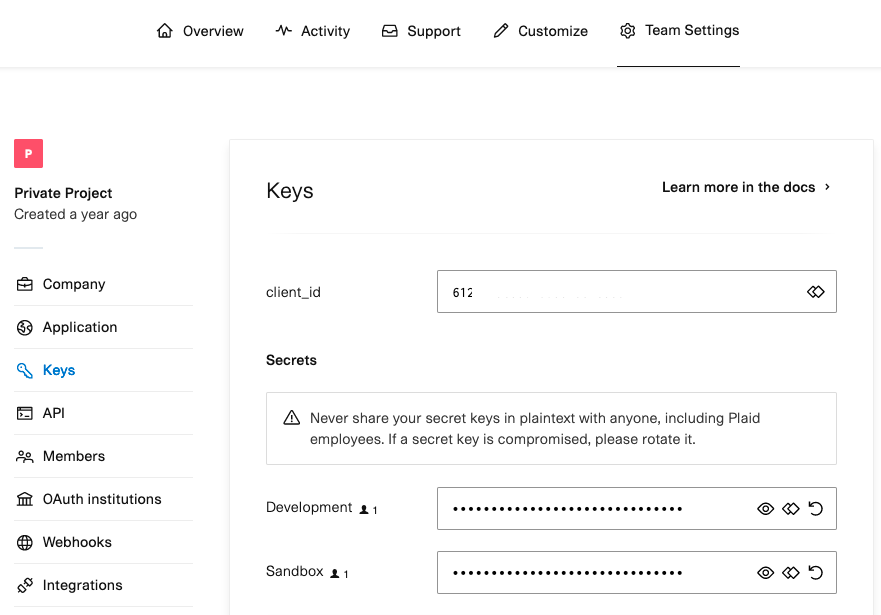 5. Enter the Plaid keys from above into the Heron Dashboard, and then submit the form.
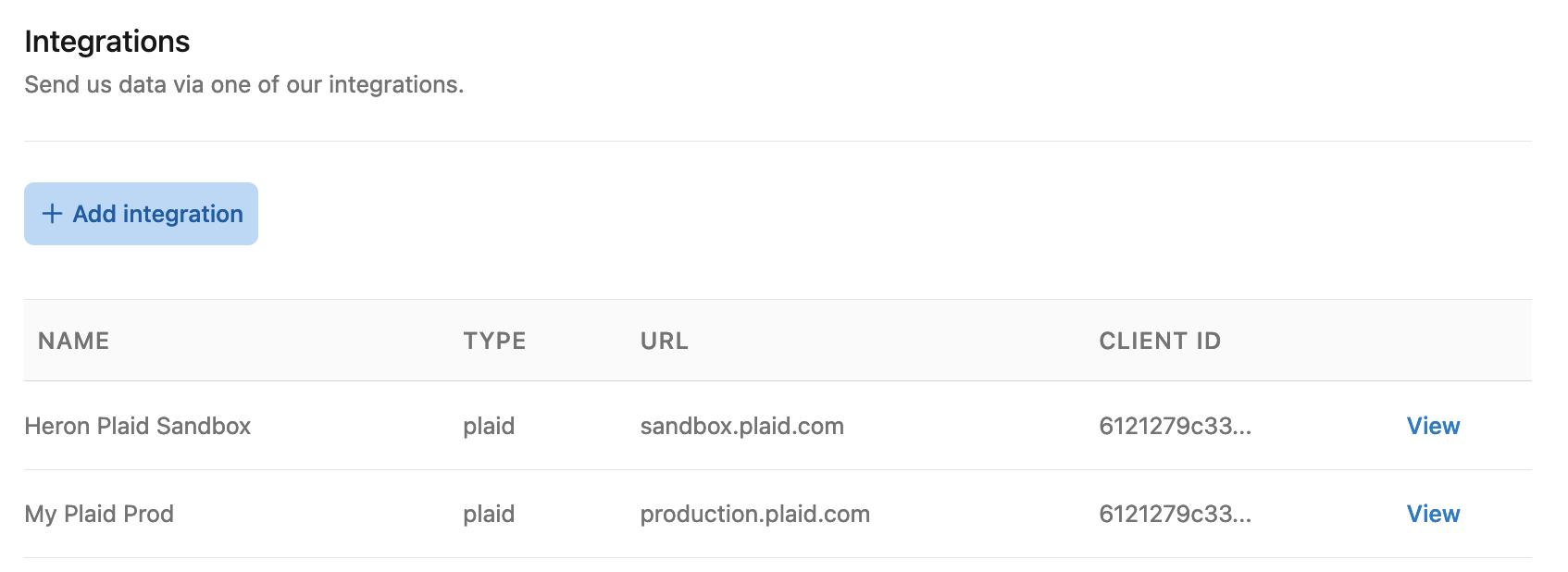
6. Once created you will see your integration in a table. Click **View** to get the **webhook URL** and **link URL** which you will need in the next steps.
5. Enter the Plaid keys from above into the Heron Dashboard, and then submit the form.
6. Once created you will see your integration in a table. Click **View** to get the **webhook URL** and **link URL** which you will need in the next steps.
 7. In your code, set the `webhook` parameter of
**[`/link/token/create`](https://plaid.com/docs/api/tokens/#linktokencreate)**
to the **webhook URL**. (Alternatively, if you want to keep your webhook
handling, forward all Plaid incoming webhooks including headers to the
**webhook URL**)
8. **New Requirement:** When creating a link token with the **[`/link/token/create`](https://plaid.com/docs/api/tokens/#linktokencreate)** endpoint, you must now include the transactions.days\_requested field to specify the desired historical transaction length. The default is 90 days, but you should now set the transaction.days\_requested field to 730 days.
9. In your code, after calling
**[`/item/public_token/exchange`](https://plaid.com/docs/api/tokens/#itempublic_tokenexchange)**
send the resulting Plaid `item_id` and `access_token`, along with your
`end_user_id` as a `POST` request to the **link URL**, [documented
here](/api-reference/integrations/create-an-integration-link).
## Final result
This diagram illustrates the final flow of data between your customers, your
Plaid Link flow, Plaid and Heron Data. The blue lines represent the code
changes explained in the previous section.
7. In your code, set the `webhook` parameter of
**[`/link/token/create`](https://plaid.com/docs/api/tokens/#linktokencreate)**
to the **webhook URL**. (Alternatively, if you want to keep your webhook
handling, forward all Plaid incoming webhooks including headers to the
**webhook URL**)
8. **New Requirement:** When creating a link token with the **[`/link/token/create`](https://plaid.com/docs/api/tokens/#linktokencreate)** endpoint, you must now include the transactions.days\_requested field to specify the desired historical transaction length. The default is 90 days, but you should now set the transaction.days\_requested field to 730 days.
9. In your code, after calling
**[`/item/public_token/exchange`](https://plaid.com/docs/api/tokens/#itempublic_tokenexchange)**
send the resulting Plaid `item_id` and `access_token`, along with your
`end_user_id` as a `POST` request to the **link URL**, [documented
here](/api-reference/integrations/create-an-integration-link).
## Final result
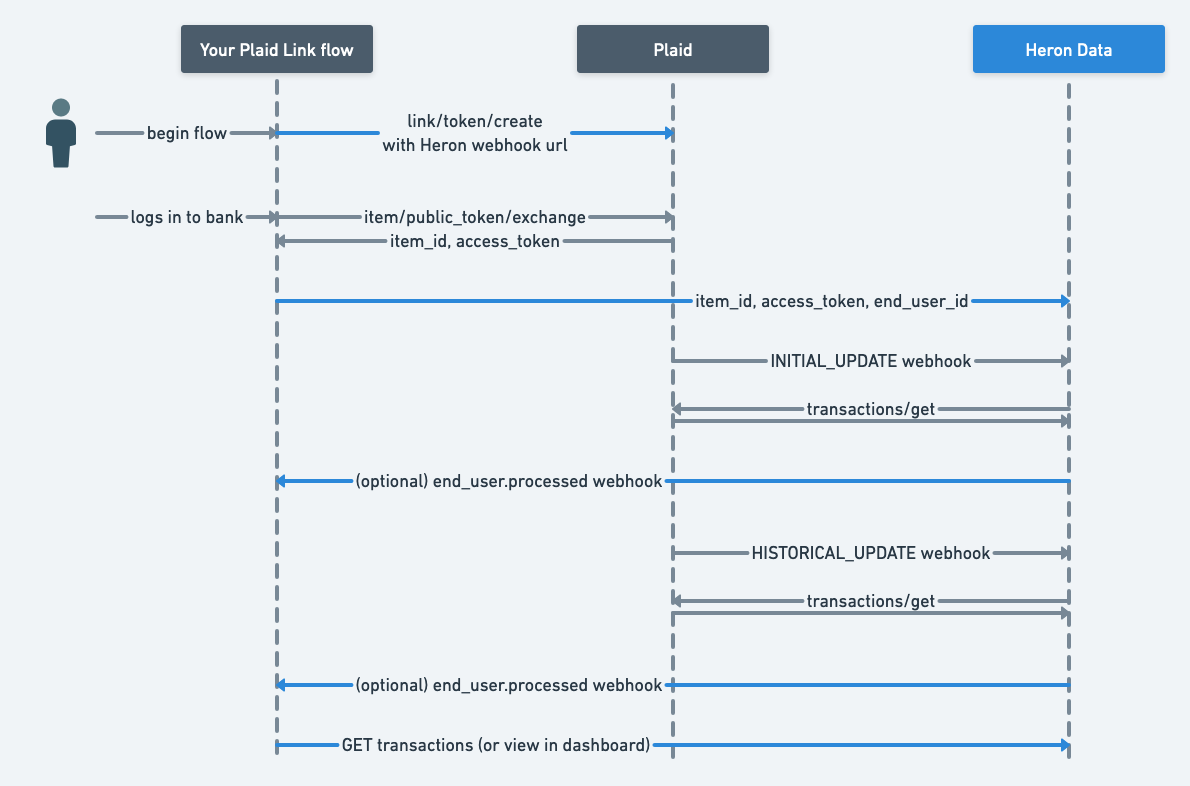
This diagram illustrates the final flow of data between your customers, your
Plaid Link flow, Plaid and Heron Data. The blue lines represent the code
changes explained in the previous section.
 Whenever Plaid has new transactions for this Item, we will retrieve, store and
process them. The incremental transactions will be available to consume via our
API or our dashboard.
Whenever Plaid has new transactions for this Item, we will retrieve, store and
process them. The incremental transactions will be available to consume via our
API or our dashboard.